How to login to Halo

Modified on Wed, 16 Sep at 10:58 AM

Halo is your Client portal wihich is used to access and manage your invoice finance facility online.

Accessing Halo

  1. Open your web browser and navigate to: https://my.acceleratedpayments.com 
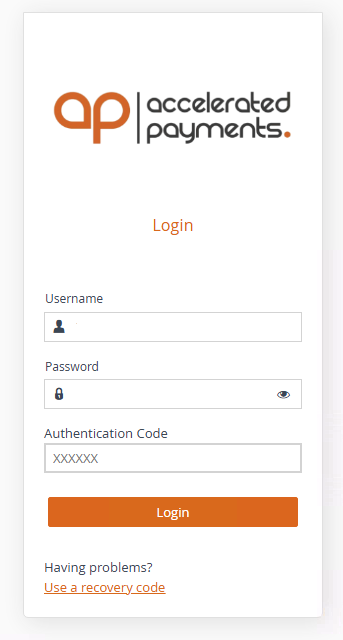
  2. Enter your registered email address.

  3. Enter your password and select Log In.

  4. When prompted, enter the authentication code from your authenticator app on your mobile device.
  5. Once logged in, you can access your account information, submit invoices, track transactions, review funding activity, and manage other facility-related tasks.

Authentication Code

For security, Halo uses multi-factor authentication (MFA). When logging in, you will be asked to enter a one-time authentication code generated by the authenticator app installed on your mobile device.


If you no longer have access to your authenticator app or are unable to log in, please contact your Relationship Manager or the Accelerated Payments Operations Team for assistance.

First Time Access

When you log in to Halo for the first time, you will be asked to set up Multi-Factor Authentication (MFA) to help keep your account secure.

Before You Begin

Download an authenticator app to your mobile device. While many authenticator apps are supported, we recommend Microsoft Authenticator:

First Time Login Setup

  1. Open your web browser and navigate to https://my.acceleratedpayments.com 
  2. Enter your registered email address.
  3. Enter your password which the team will have provided in advance, and select Log In.
  4. Halo will display a QR code for Multi-Factor Authentication (MFA) setup.
  5. Open your authenticator app on your mobile device.
  6. Select Add Account (or the + icon).
  7. Choose Scan QR Code.
  8. Scan the QR code displayed on the Halo login page.
  9. The authenticator app will generate a six-digit authentication code.
  10. Enter the code into Halo and select Verify.
  11. Your MFA setup is now complete and you will be logged in to Halo.

Was this article helpful?

That’s Great!

Thank you for your feedback

Sorry! We couldn't be helpful

Thank you for your feedback

Let us know how can we improve this article!

Select at least one of the reasons
CAPTCHA verification is required.

Feedback sent

We appreciate your effort and will try to fix the article