Reporting allows you to request account and facility reports, choose an output strategy, monitor generation status and download completed reports. Always check the selected client, report, date and output strategy before submitting the request.
Use Reporting to request account and facility reports directly from the portal.
Available reports shown in Halo include:
There is a brief overview of each report available here.
Helpful note
Choose the report that best matches the information you need to review. The Movement Report and Client Statement are useful for reviewing movements and account information.
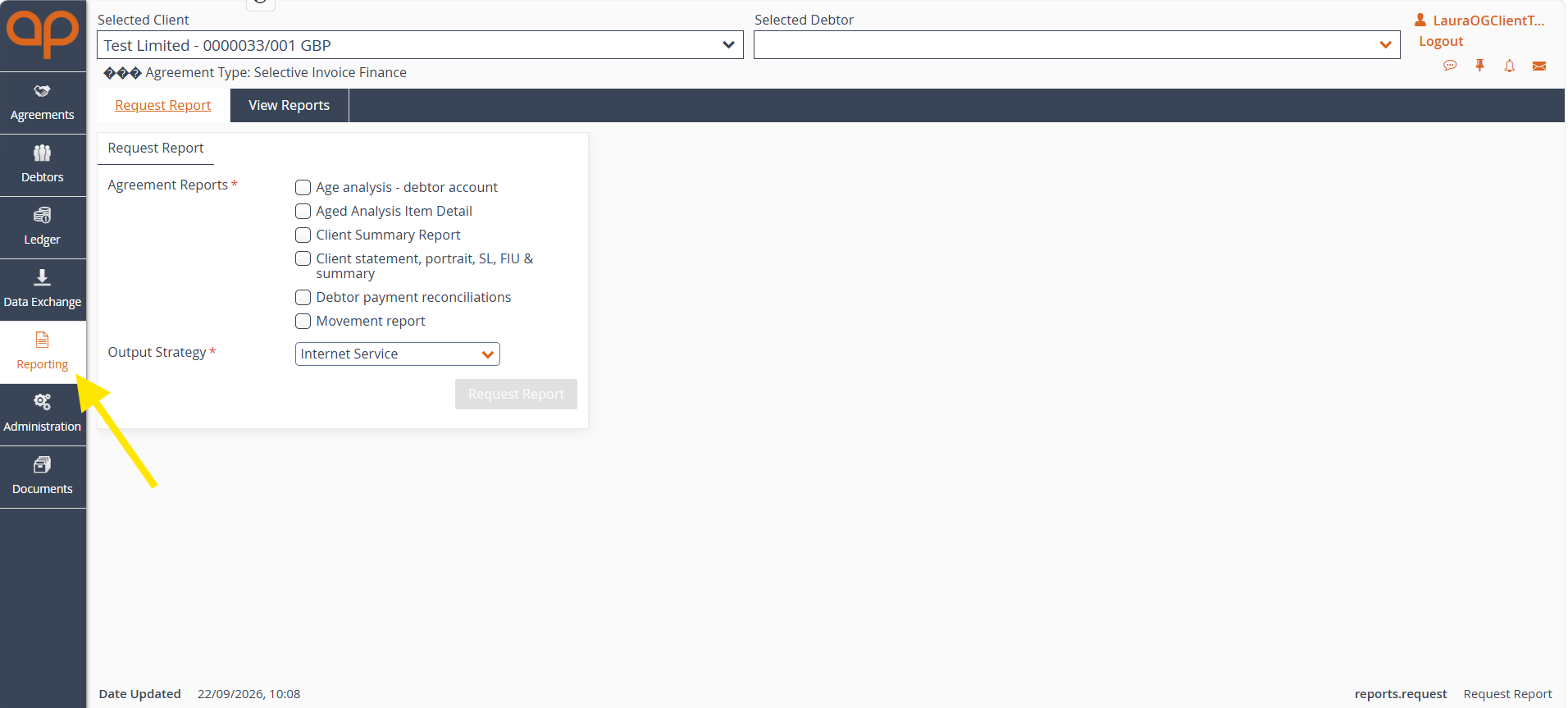
Step 1: Open Reporting
From the left-hand portal navigation, select Reporting. The Request Report page will open.
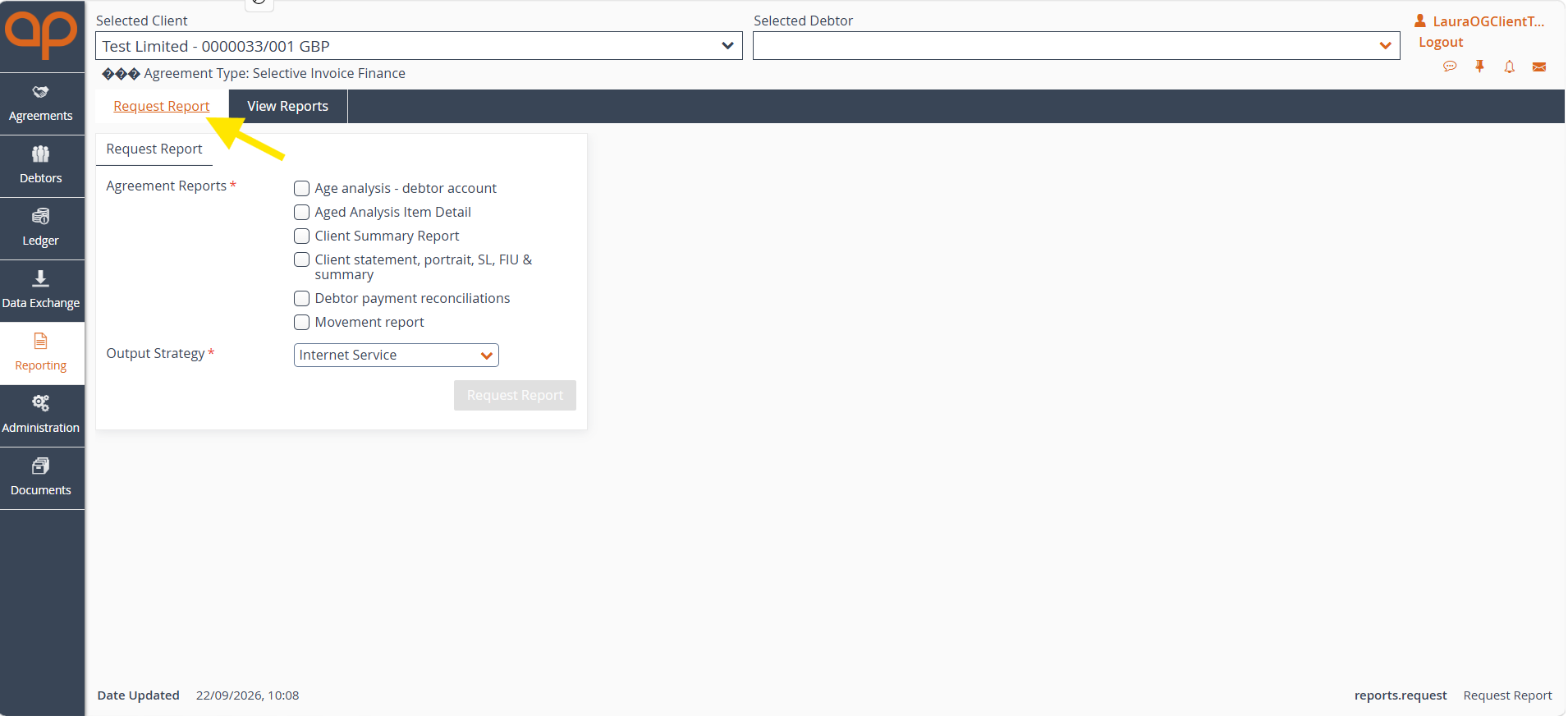
Step 2: Select Request Report
Select the Request Report tab. The available Agreement Reports and Output Strategy field will be displayed.
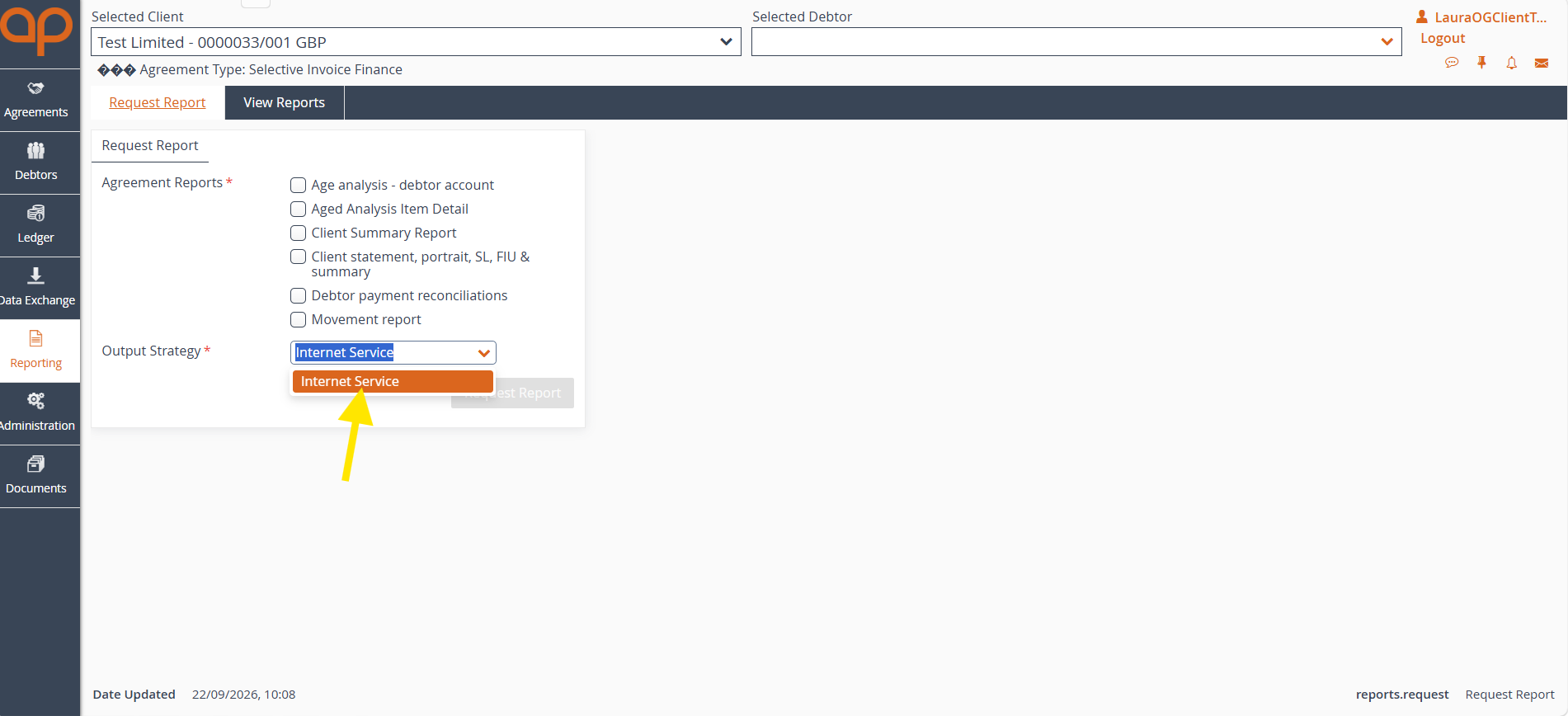
Step 3: Choose the Output Strategy
Open the Output Strategy dropdown and select the required delivery method. The available options are:
Output format
Excel and Email or PDF and Email fixes the output to that format. Internet Service allows the available download format to be selected from View Reports.
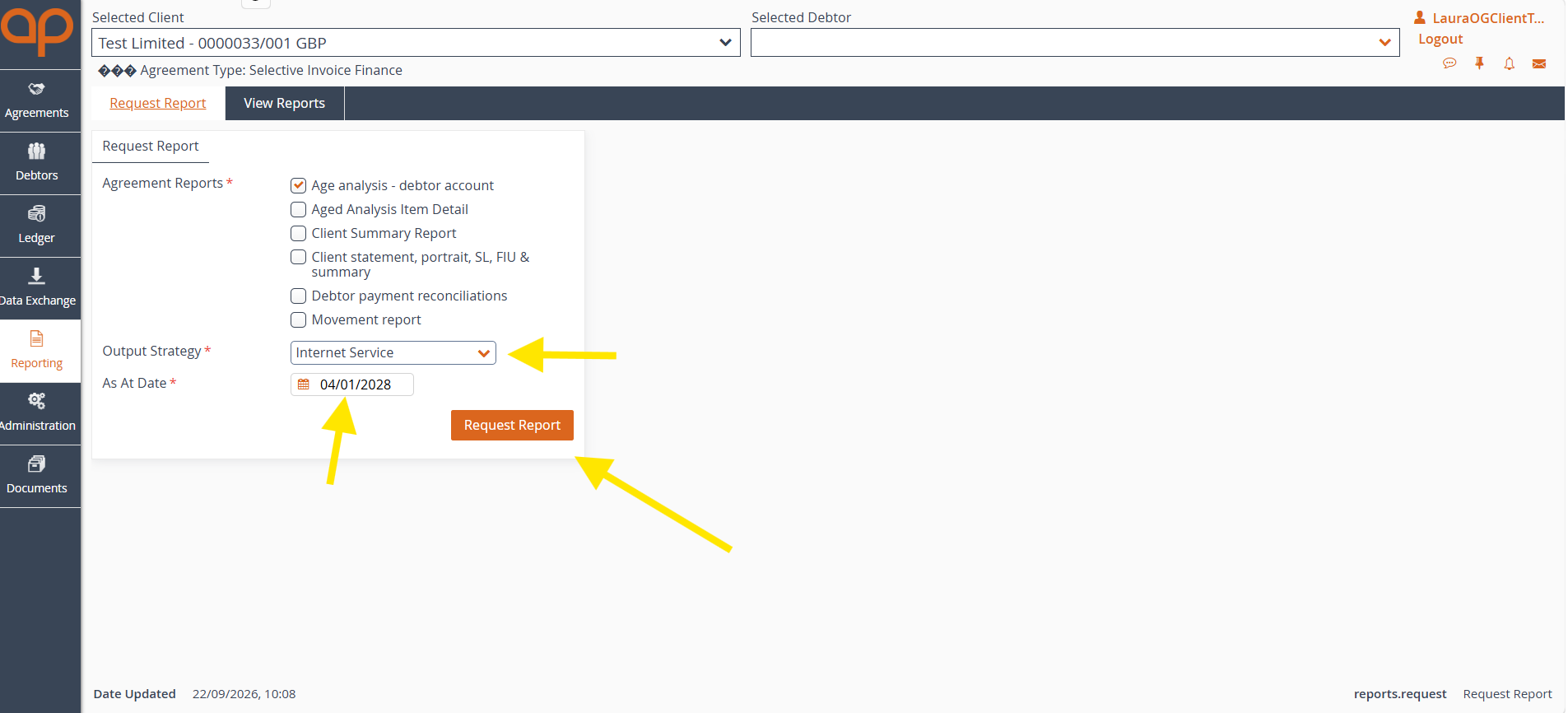
Step 4: Choose the report and request it
- Select the checkbox beside the required report.
- Depending on the report, complete the required date field, such as As At Date, then select Request Report.
- The report request is submitted for generation.
Processing time
Report generation may take time. If the completed report does not appear immediately, use View Reports and Refresh to check the latest status.
Step 5: Select View Report
Select the View Reports tab to review reports that have been requested. The list shows the report name, report number, request timestamp, request status and output strategy.
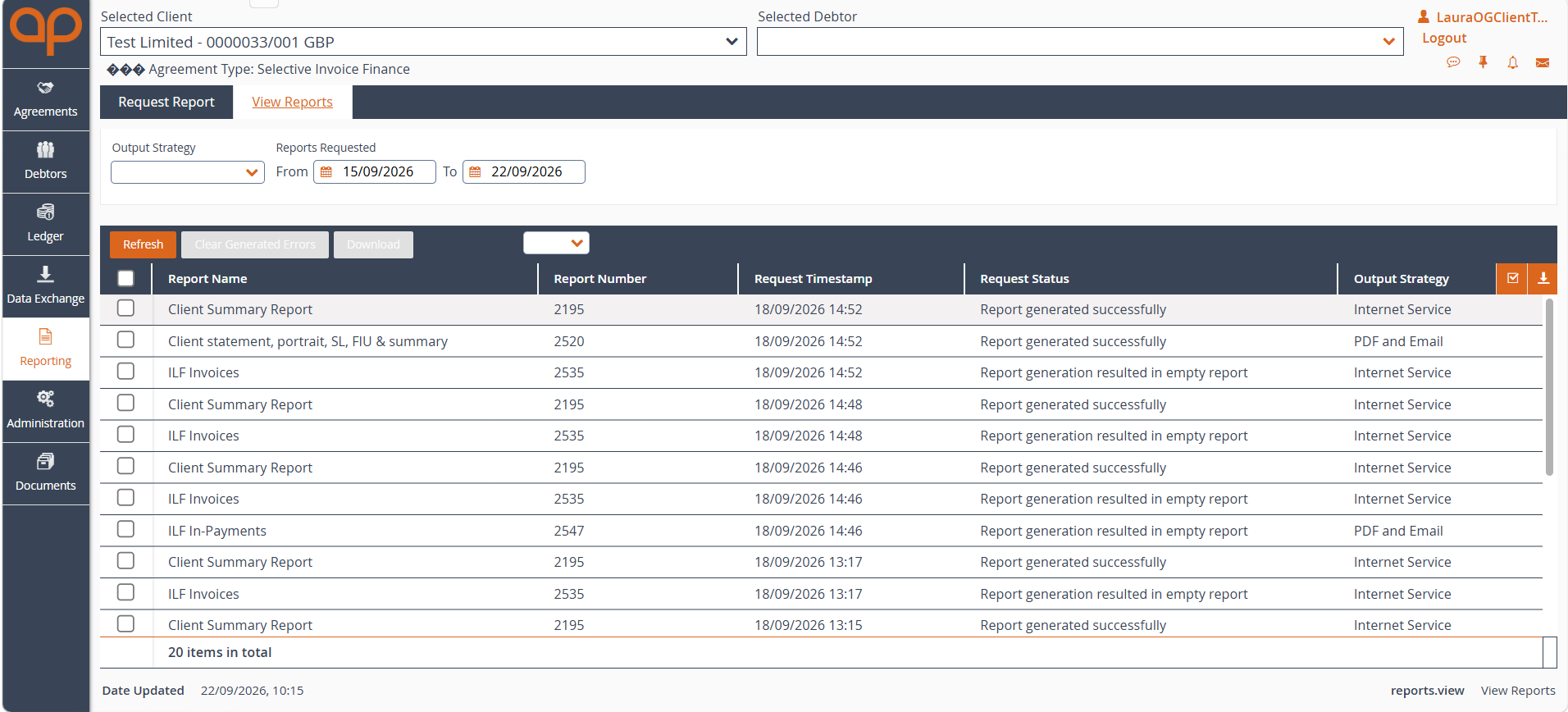
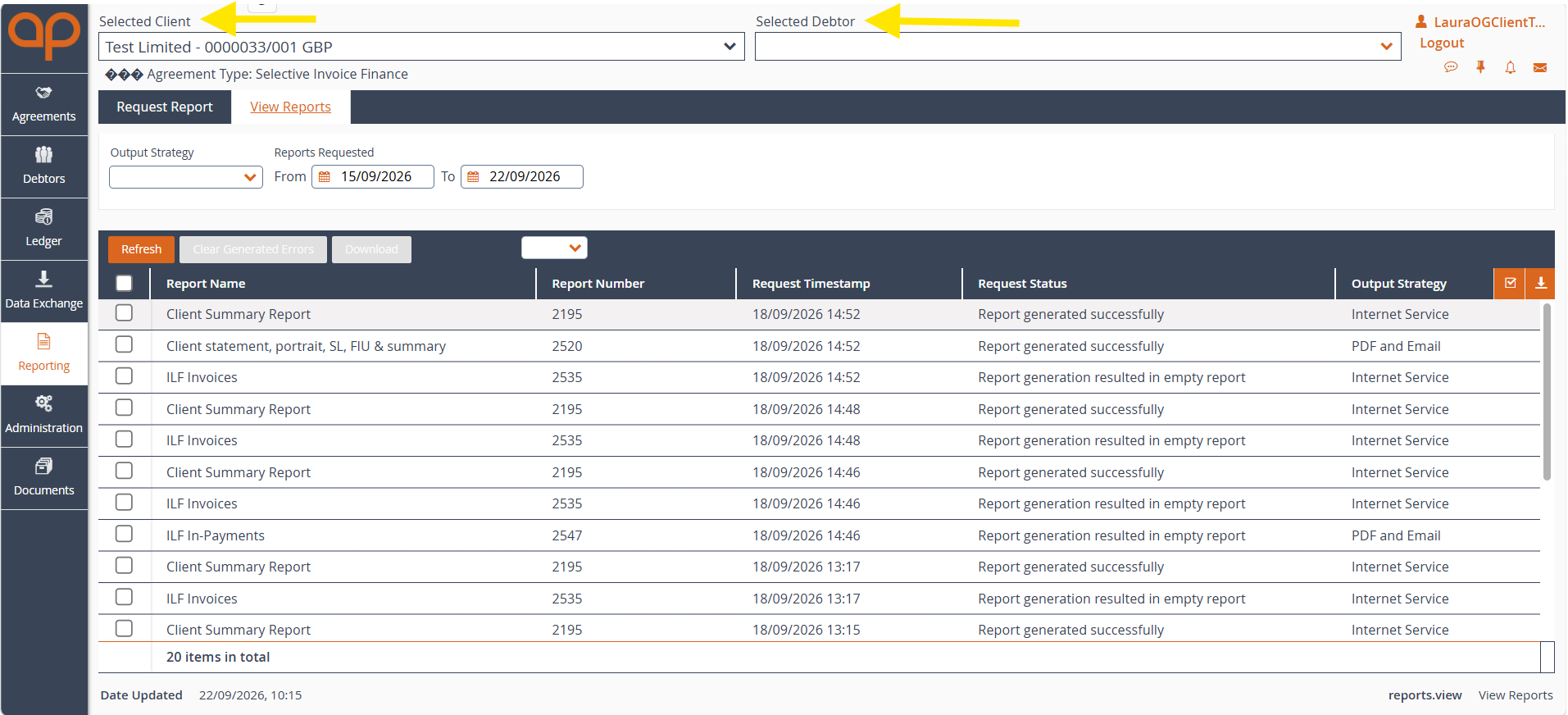
Step 6: Select the client, debtor and filters
Status check
Review Request Status before downloading. Reports may show Report generated successfully or another status, such as an empty report.
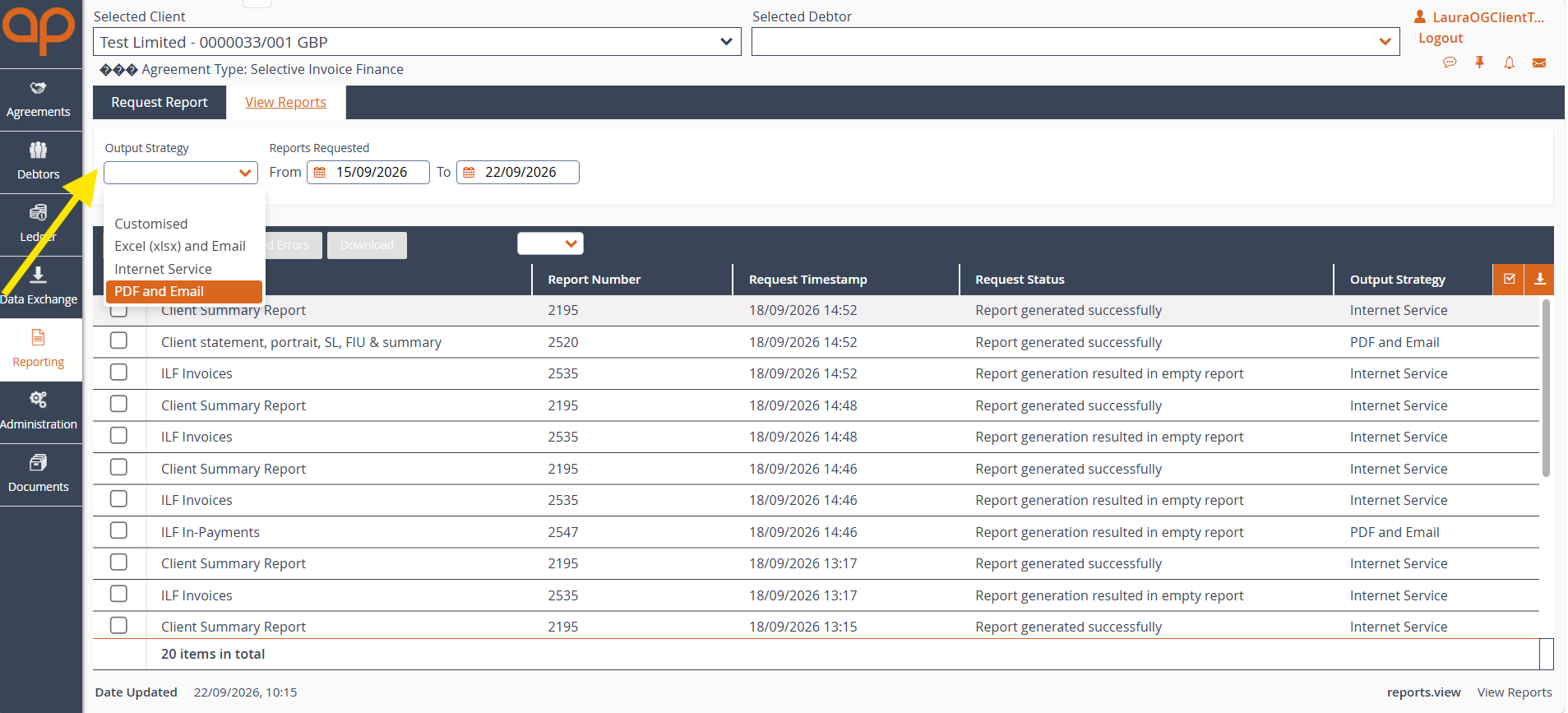
Step 7: Filter by output strategy
Open the Output Strategy filter and select the delivery method used when the report was requested.
Options shown include:
Use Internet Service when locating reports that are available to download directly from the portal.
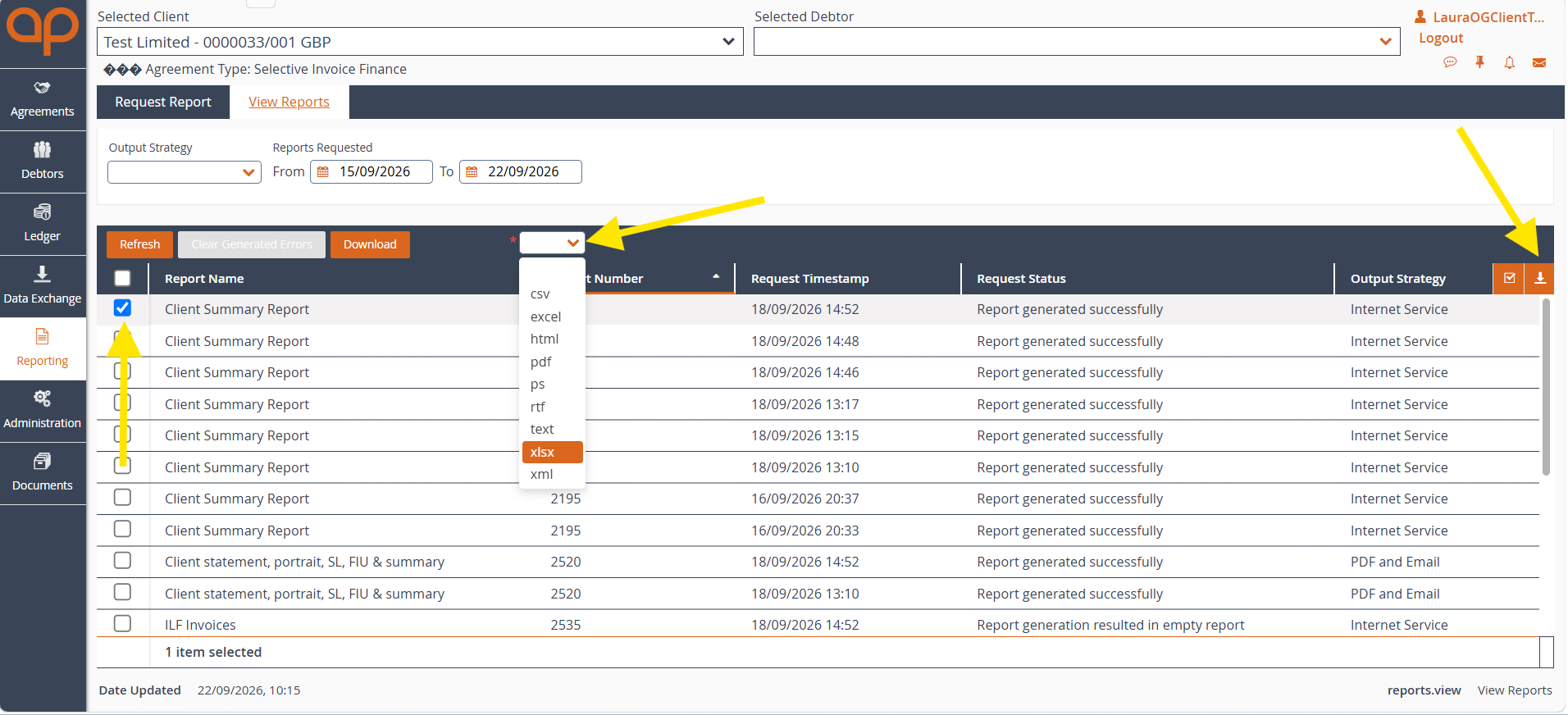
Step 8: Choose report, format and download
Available formats
The screenshot shows formats including CSV, Excel, HTML, PDF, PS, RTF, text, XLSX and XML. Available formats may depend on the report and output strategy.
If a report is empty
Confirm that the correct client, report and dates were selected. If the result remains unclear, contact the relevant Accelerated Payments representative for guidance.
Was this article helpful?
That’s Great!
Thank you for your feedback
Sorry! We couldn't be helpful
Thank you for your feedback
Feedback sent
We appreciate your effort and will try to fix the article